
Control Tower
The management view: where managers can review metrics, cases, conversations and agent activity.
Introduction
Meet Control Tower
Control Tower is the management side of Acai. Where Copilot chat serves the agent working one booking, Control Tower answers the questions a team lead has about all of them: how much demand came in, how much of it reached AI, what the assistant actually did to each case, and which agents are getting value out of it.
One place, four questionsWhat is coming in · what Acai did with it · what a single case looked like · who on the team is using it.
| Area | What it answers |
|---|---|
| General insights | How customer demand evolves, and how much of the work reaches AI. |
| Case flows | What happened to each case — routed, deflected or assisted — and what the assistant wrote. |
| Shadow mode | Under construction. |
| Conversations | Which agents use Copilot chat, what they ask about, and the conversations themselves. |
Two controls that apply everywhere
Most screens carry an account filter and a date range at the top, and everything below them obeys both. Beside the date range there is a download button, so any screen can leave as a file for a report or a review meeting.

Filters and CSV download
The date range drives the comparisons tooFigures shown "vs prior period" compare against the immediately preceding window of the same length. Widen the range and the comparison widens with it.
General insights
Understand how demand evolves and how much work reaches AI
The opening screen. A row of headline figures, then the same story over time, then the breakdown by account and by intent.
The headline figures
| Card | What it counts |
|---|---|
| Total cases | All cases processed by Acai in the range. |
| Cases assisted by Acai | Cases ingested from CRM integrations (Acai omnichannel), where the assistant contributed, with the share of the total alongside. |
| Routed | Cases the AI supervisor sent to a folder, mailbox or tag. |
| Interactions deflected | Cases resolved without an agent having to step in. |
| Copilot conversations | Agent questions answered in Acai Co-Pilot in the period. |
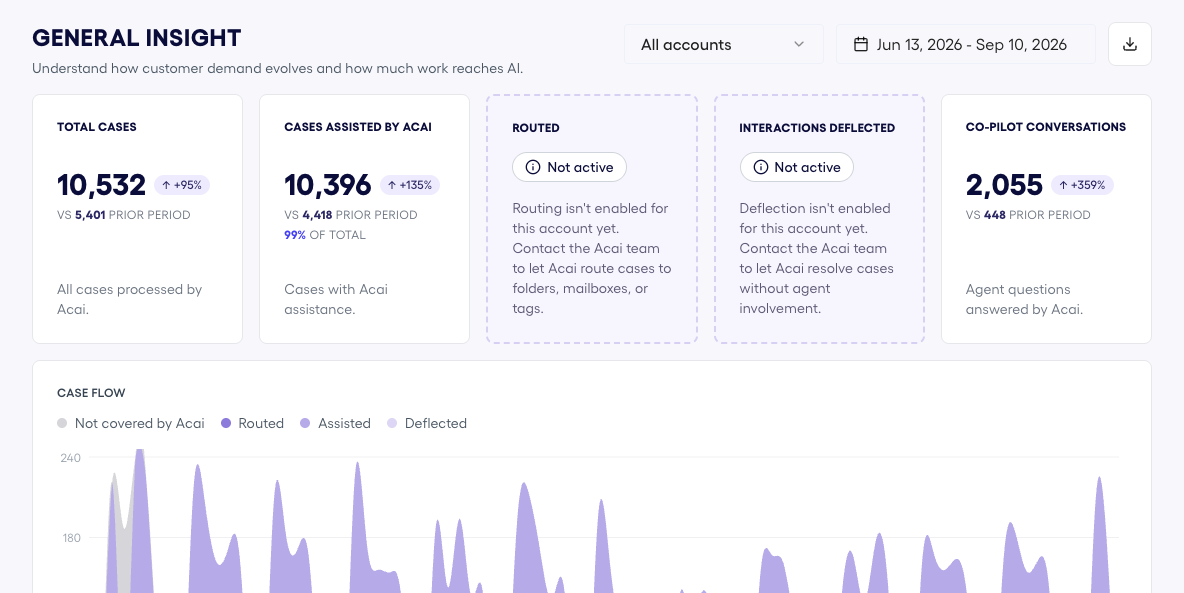
General insights: main metrics and Acai activity
Each card shows the change against the prior period, so a number is never read on its own.
A card reading "Not active" is not an errorWhere one of them is off, the card explains what it would do rather than showing a zero — and points you to the Acai team to have it enabled. If you want to active any feature, contact with our Customer Success team.
Case flow over time
The same volume as the headline cards, plotted across the range and split four ways: not covered by Acai, routed, assisted and deflected. It is the quickest way to see whether coverage is holding steady or moving, and to spot the days where demand spiked.
Top accounts
One row per account, with total cases and the split across routed, assisted and deflected, plus an Acai coverage bar and percentage. The panel header tells you what share of total case volume the listed accounts represent, so you know how much of the picture you are looking at.
Intent breakdown
Every intent Acai classified in the range, with the number of cases, the share of the total, and the change against the prior period. This is the screen that answers "what is my team actually being asked?" — and the one to watch when a new kind of request starts arriving.
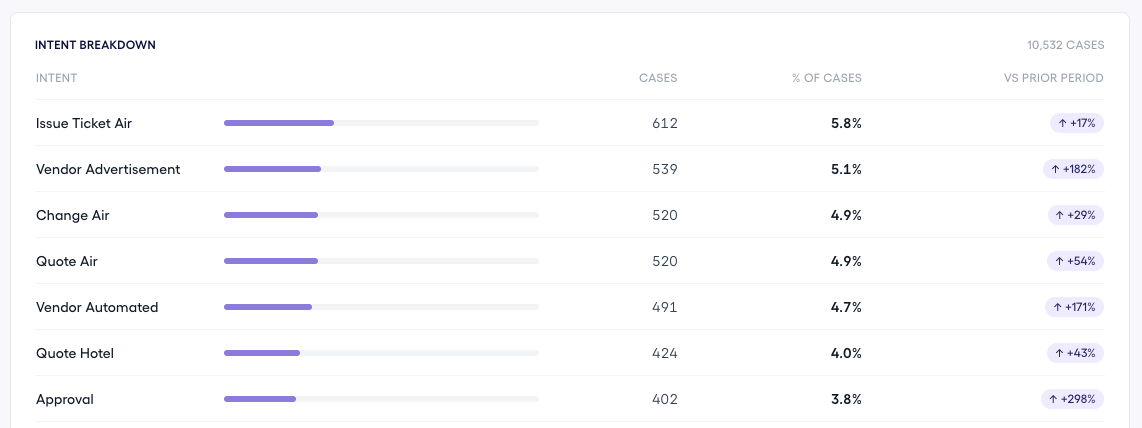
Case intents per period with their percentages and comparison
Case flows
Detailed view of how cases were routed, deflected or assisted
Where General insights aggregates, Case flows lists. One row per case, with everything you need to find the one you care about.
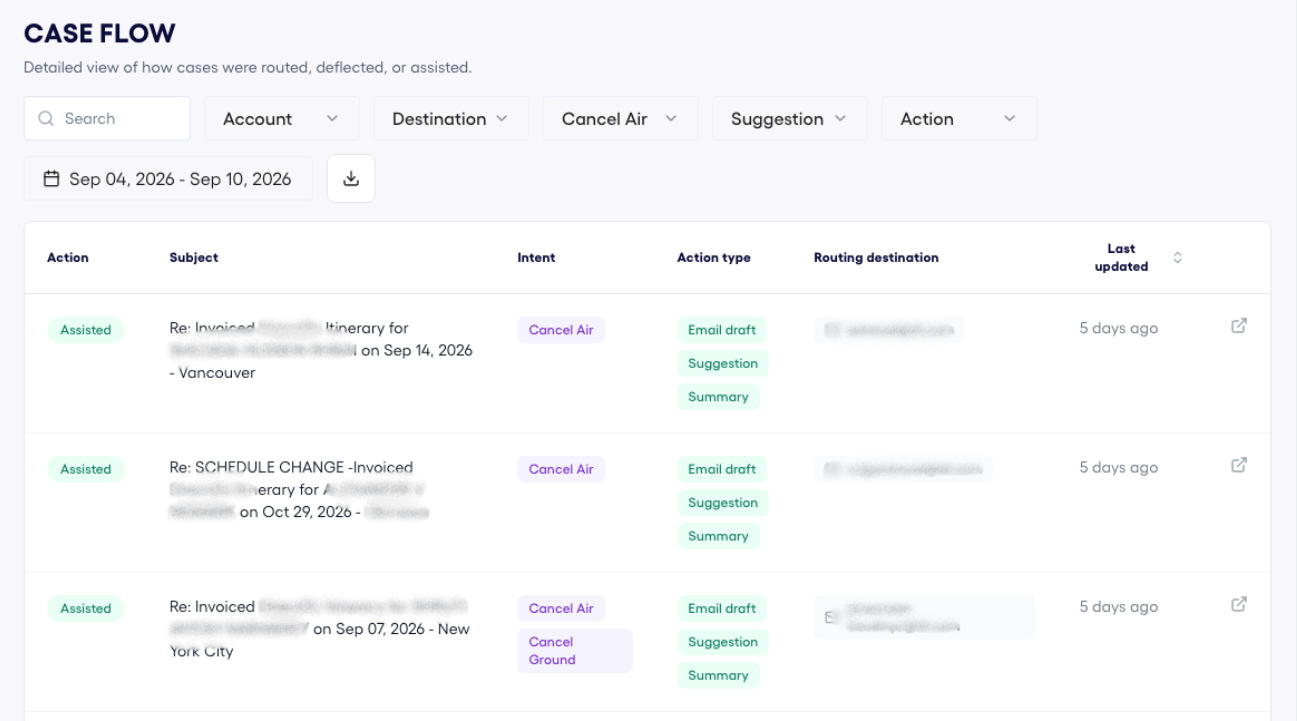
Case flow table: filter, search and access case details
Finding a case
A free-text search, five filters and the date range:
| Filter | Narrows by |
|---|---|
| Account | The agent account (email) the case belongs to. |
| Destination | Where the case was routed. |
| Intent | What Acai classified the case as. Take into account that some cases might have different intents. |
| Action type | The kind of output produced — an email draft, a suggestion, a summary. |
| Action | What Acai did with the case overall (routed, assisted, deflected). |
For example, the table in the previous image is filtered to display only cases with the intent "Cancel Air" and Action type "Suggestion".
Reading the table
| Column | What it shows |
|---|---|
| Action | Whether the case was assisted, routed or deflected. |
| Subject | The subject line of the case, as it arrived. |
| Intent | The classification Acai gave it. |
| Action type | Every output produced for that case — a case can carry several. |
| Routing destination | The mailbox or folder the case went to. |
| Last updated | How long ago the case moved. |
Each row opens in its own window, so you can work through a list without losing your place.
Inside a single case
Opening a case shows its tags — the action taken, the intent, when it was last updated — and then the email thread, newest message first, with the full text one click away.
Below the thread sit the two things Acai produced:
- Acai Summary — what the case is about, the booking behind it, and what the customer is asking for.
- Acai Suggestion — the draft or recommendation prepared for the agent, including the reasoning where a calculation was involved.
This is the review surfaceThe case view is where a team lead checks the assistant's work: what it read, what it proposed, and whether an agent should have followed it. Feedback given here is what improves the answers.
Shadow mode
This section displays the actions that our internal AI agent would execute with this mode active. Acai doesn't perform any irreversible actions here; instead, it analyzes, processes, and explains which actions and tools it would use to resolve various cases—such as cancellations, refunds, and exchanges.
This mode allows you to verify that automated flows are working as expected before going live.
Under constructionShadow mode is being built. This section will be written once the screens are final.
Conversations
See which agents are using Copilot, and what they ask
The Copilot chat side of Control Tower. Two tabs: an Overview of adoption across the workspace, and an Agents tab that goes agent by agent down to the individual conversation.
Overview
Workspace summary
| Card | What it counts |
|---|---|
| Total agents | Agents who have opened Copilot at least once. |
| Active users | Agents who used Copilot at least once in the range. |
| Inactive agents | Agents with no Copilot use in the selected range. |
| Total conversations | Chats started in the period. |
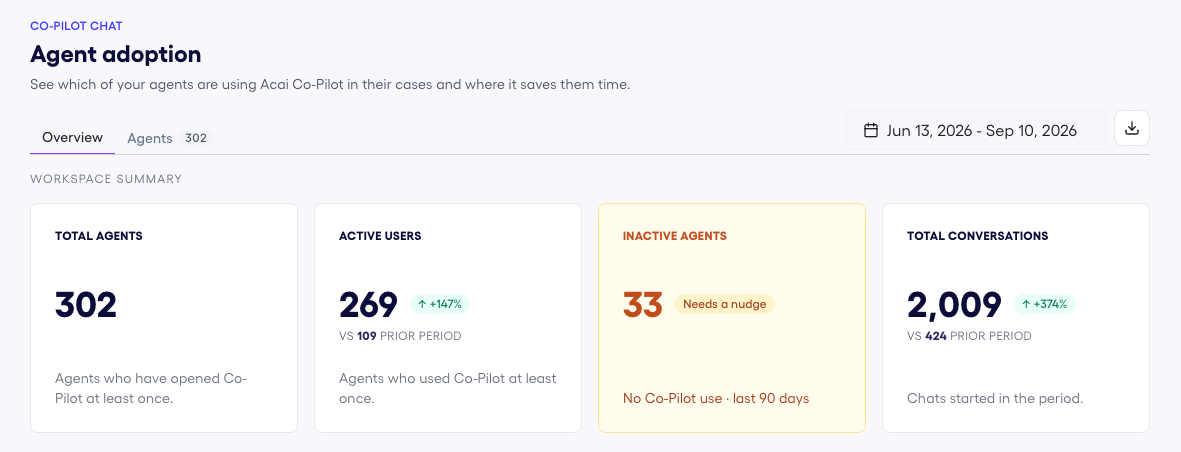
Co-Pilot chat main metrics for adoption in a period
"Needs a nudge" is the actionable numberInactive agents is the one card highlighted on the screen, because it is the only one you can act on directly: it is a list of people who have access and are not using it in the period. Adoption work starts here.
Adoption over time
Conversations plotted across the range, with the latest day called out separately — how many conversations, from how many active agents — so a partial day is never mistaken for a drop.
Conversations by agent
Agents ranked by conversations started, with the share the top few represent. Underneath, the split between active agents and agents at zero.
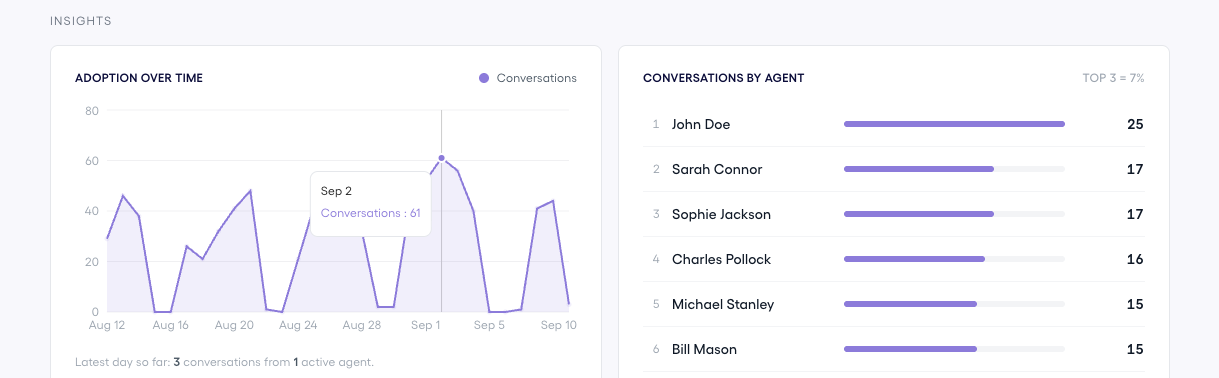
Conversations over time / conversations per agent
What agents ask about
Every conversation is classified, so you can see what your team actually needs help with — GDS guidance, airline policies, fare rule analysis, reading PNR data, quoting a change or a refund, integrations, utilities, schedule changes — each with its share and its count.
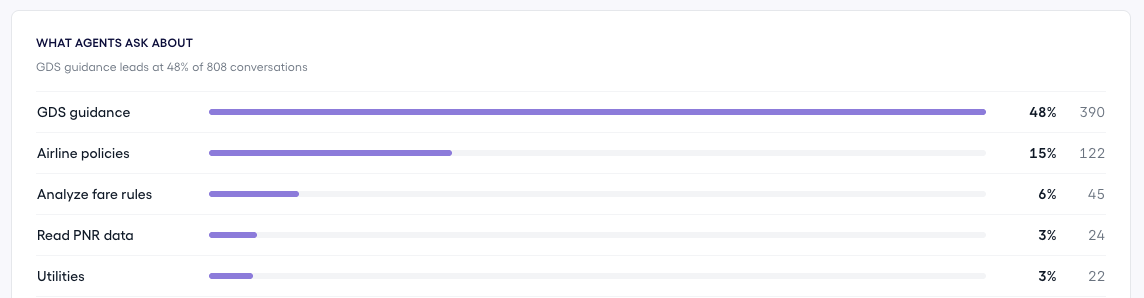
Categories of conversations by query type
Read it as a training signalThe categories at the top are where your team is spending its questions. A high share on GDS guidance says something different from a high share on fare rules, and both point at what to cover in the next training session.
Agents
The agent-by-agent view, with two ways to look at it — by agent, or all conversations — plus a search and a feedback filter.
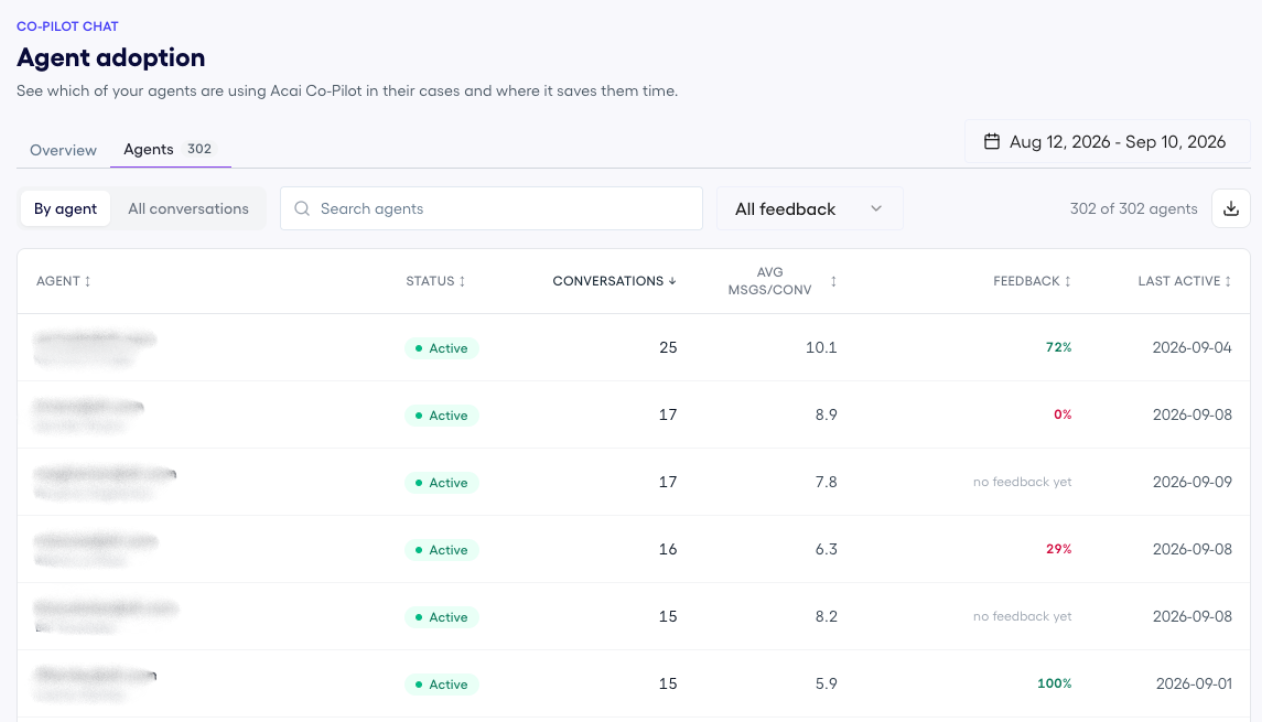
Agents table to review the activity and feedback per agent
| Column | What it shows |
|---|---|
| Agent | The agent's sign-in and name. |
| Status | Whether they are active in the selected range. |
| Conversations | How many conversations they started. |
| Avg msgs/conv | Average messages per conversation — a rough measure of how much back-and-forth each question took. |
| Feedback | The feedback they left, where they left any; and the overall rating percentage calculated from all the feedback given in that conversation. |
| Last active | The last day they used Acai Co-Pilot. |
Down to the conversation
Selecting an agent lists their conversations for the range — subject, messages, feedback and when it was last updated. Opening one shows the whole exchange, message by message, exactly as the agent saw it: what they asked, what Copilot answered, and how the conversation developed.
Updated about 1 month ago