
Training Manual (Copilot chat)
Everything your team needs to get answers, quotes and actions out of Copilot chat, through a simple conversation.
What's inside
A guided path from your first booking lookup to executing changes and cancellations, plus the questions you can ask at any time.
Getting Started
Working with a Booking
Changes & Cancellations
Split / Divide Passengers
PNR History
Waivers
Tips & Best Practices
Ask Me Anything
Preferred & Excluded Suppliers
Quick Reference
01. Introduction
Meet Copilot
Copilot is your AI-powered assistant, built by Acai Travel. It draws on GDS manuals, airline policies, your internal policies, fare rules, and PNR retrieval. You get answers, quotes, and actions through plain conversation instead of manual GDS commands.
How it works?
Copilot works through a chat interface. You type simple-language questions or requests, and it responds with structured, accurate information pulled directly from the GDS.
No cryptic commands. No memorizing formats.Talk to Copilot the way you would explain a task to a colleague.
What this guide covers
- Retrieve a booking: Pull PNR data from Sabre or Amadeus.
- Quote and execute changes: Compare flight options and process exchanges.
- Quote and execute cancellations: Understand refunds and process them.
- Ask anything: Ask about fare rules, baggage, seats, visas, and more.
From zero to hero, instantlyNo CRM migration, GDS training, or steep learning curve is required. Copilot meets your agents where they already work.
02. Meet the interface
Your workspace at a glance
Copilot has three zones: the helpers menu on the left, the conversation in the centre, and the live booking details on the right (sidebar).
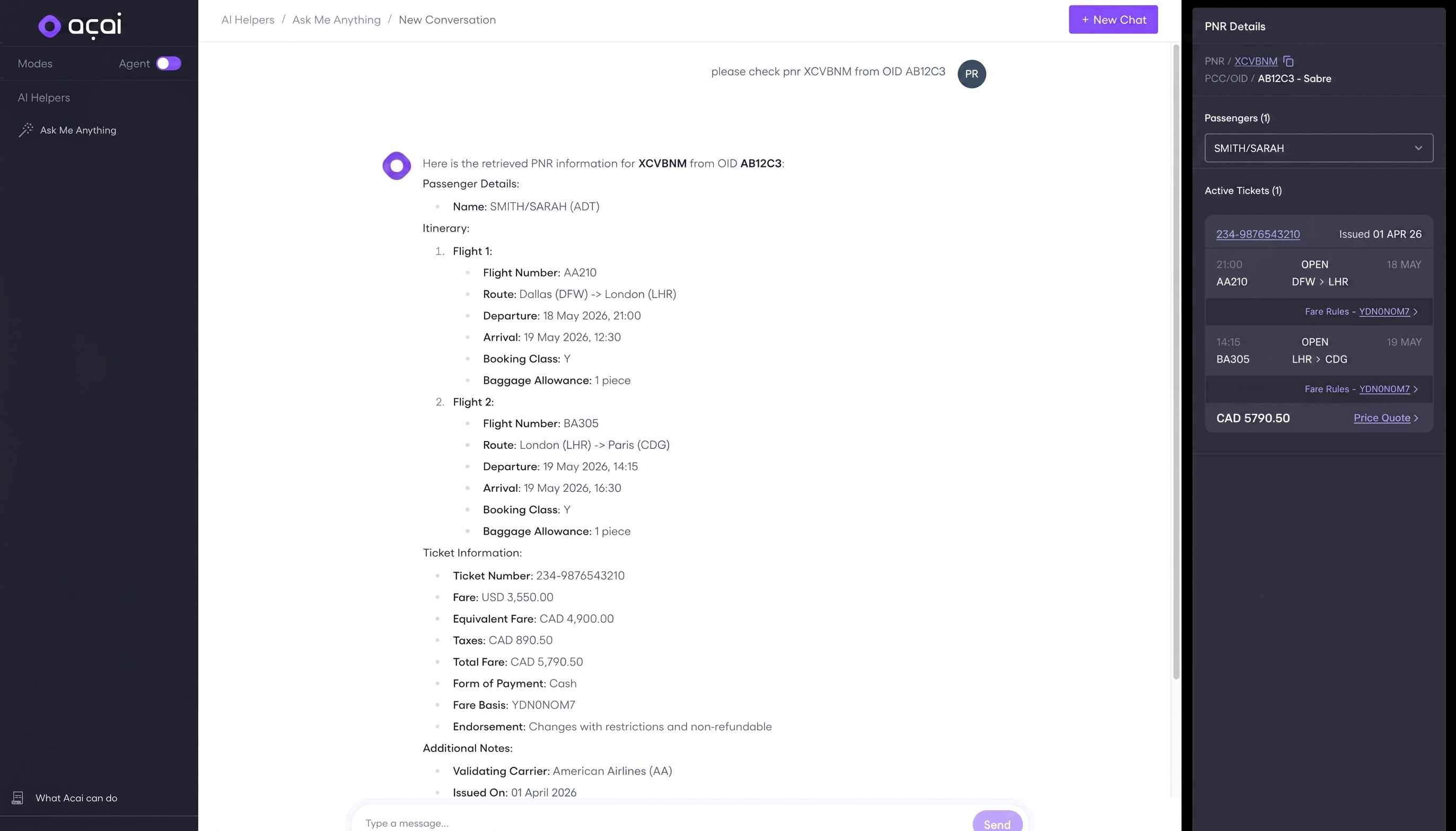
| Zone | What it is |
|---|---|
| 1. AI Helpers (left) | Your assistants live here, including Ask Me Anything for open-ended questions. |
| 2. Conversation (centre) | Type requests in plain language; Copilot replies with structured answers. |
| 3. PNR Details (right) | A live sidebar summarizing the booking currently in focus. |
| 4. New Chat | Top right button. Start a fresh conversation whenever you switch topic or booking. |
03. Retrieving PNR Information
Start every workflow here
Retrieving a booking is the most fundamental Copilot interaction. Pull up a booking by giving the record locator and the office it lives in PCC/OID.
Know your three identifiers
| Identifier | What it is | Example |
|---|---|---|
| PNR | The 6-character record locator that identifies the booking. | ABC123 or ABCDEF |
| PCC / OID | The office identifier: PCC in Sabre or OID in Amadeus. | A1B2 · YTOGO5678 |
| Ticket number | The 13-digit ticket number, not a booking locator. | 001-1234567890 |
Copilot cannot look up a booking by ticket number alone. It needs the PNR.
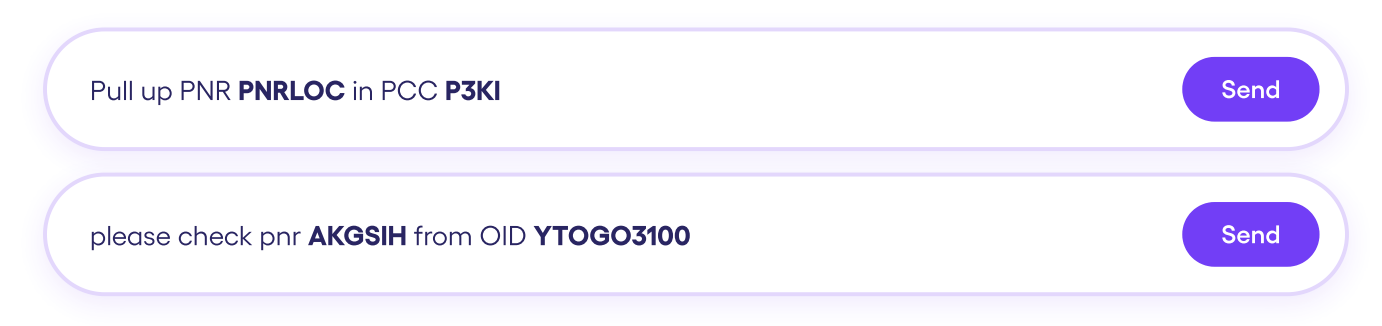
How to ask: examplesAlways say which value is the PNR and which is the PCC/OID; don't just paste codes on their own.
Frequent issues and good practices
Most failed lookups come from ambiguous input, not from the booking. The fix is almost always the same: label each value, and give the PNR and the PCC/OID together.
| ❌ Frequent issue | ✅ Good practice |
|---|---|
❌ ABC123A lone code with no label. Copilot cannot tell if it is a PNR, a PCC, or something else. | ✅ Retrieve PNR ABC123 in PCC A1B2Both values are present and clearly labeled. |
❌ is this refundable 0751234567890 a1b20751234567890 is a ticket number, not a PNR, and neither value is labeled. | ✅ Is this ticket refundable? PNR ABC123, PCC A1B2Lead with the PNR and PCC; ask the question around them. |
❌ Check 075-1234567890Only a ticket number. Copilot cannot open a booking from this alone. | ✅ Check PNR ABC123 in OID 12345678Give the PNR plus the office it lives in. |
❌ Retrieve ABC123 from ABC123The same value is sent for both fields. Copilot rejects it: "PNR and PCC cannot be the same." | ✅ Retrieve PNR ABC123 in PCC A1B2Two different values are clearly labeled. The PNR and PCC are never the same. |
When in doubtGive the PNR and the PCC/OID together, each clearly labeled, in your very first message. It resolves the lookup the first time.
Not sure which office a booking lives in?Ask Copilot "Which PCCs do I have access to?" Many agencies have ten or more. Then give the PNR alongside the right one.
04. Reading the booking
The PNR Details sidebar
On the right you'll find the sidebar: an at-a-glance summary of the booking, with everything one click away.
-
PNR and PCC/OID: The record locator and the environment it lives in.
-
Passenger names: Switch between travellers on the booking.
-
Active and previous tickets: Segments, status, dates, and fares.
-
Fare Rules and Price Quote: Opened directly from each ticket.
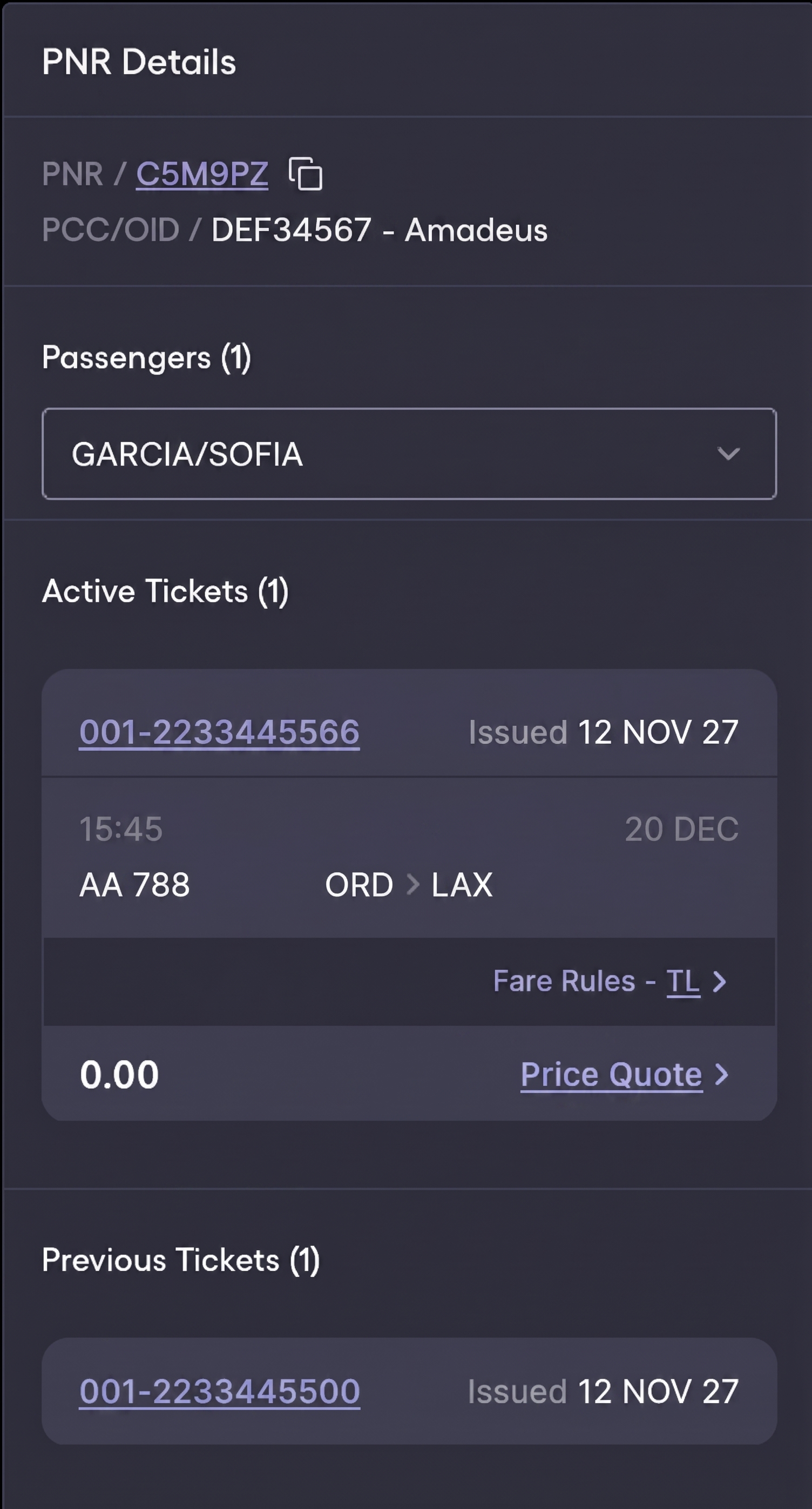
Every field shown in purple is clickable: selecting it opens the full detail exactly as it appears in the GDS.
The full PNR record
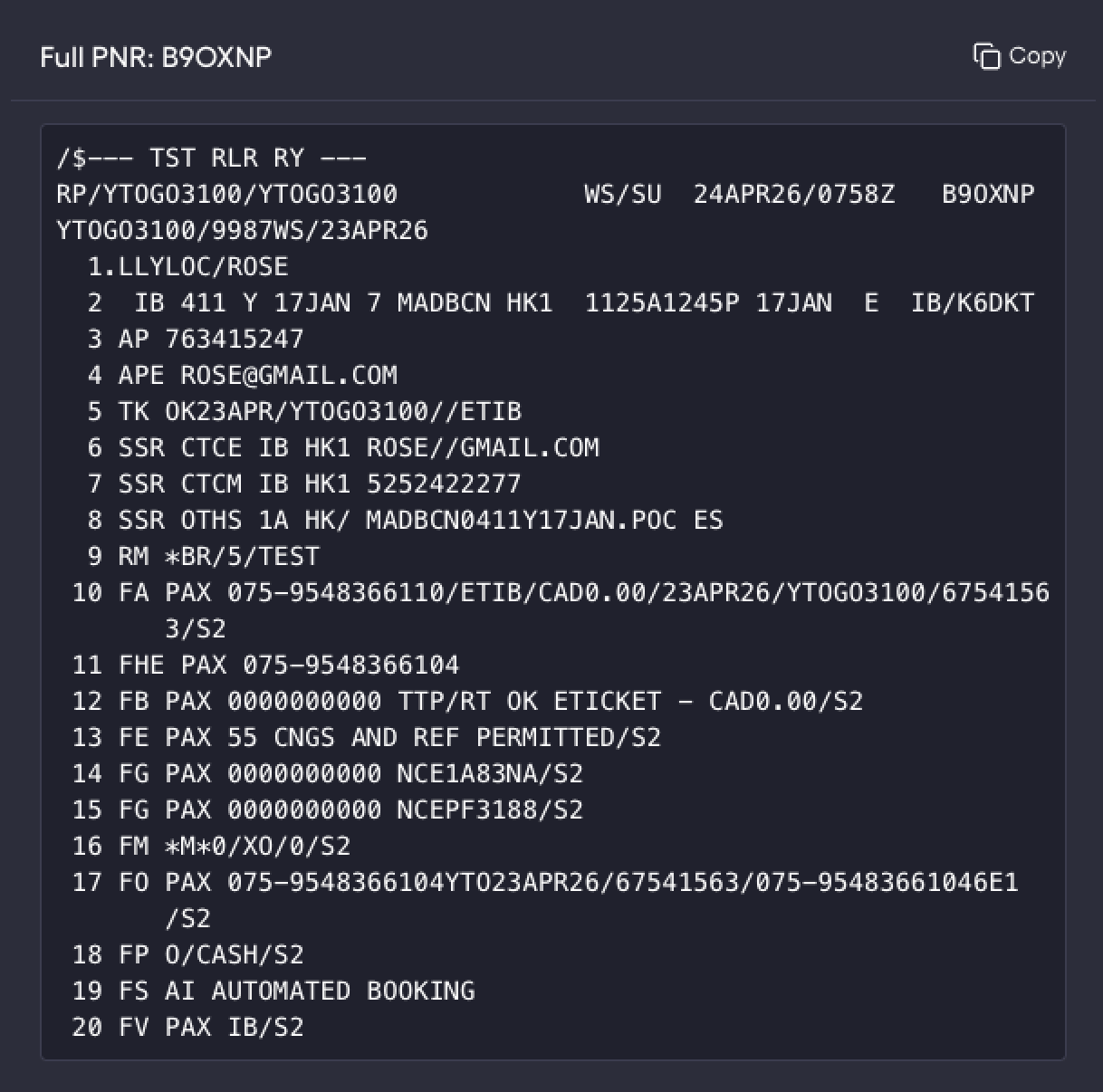
Click the PNR link in the sidebar and Copilot opens the raw GDS record. This is the same data your team already knows, presented as it appears in Sabre or Amadeus.
What you're looking at
- Header: Record locator, office, and date stamp.
- Passenger and itinerary: Name, segments, status, and times.
- Ticketing and remarks: FA / FE / FP/5-/5Q lines, endorsements SSRs and OSIs.
Use Copy in the top right to grab the full record for notes, emails, or escalations. Any ticket number opens the same way. Click it to see the full ticket record.
05. Conversation history
Ask Me Anything and your history
On the left, select Ask Me Anything to open the history of your conversations, so you can return to any past session in seconds.
- Search past conversations by keyword.
- Rename a conversation to find it easily later.
- Archive the ones you no longer need on the list.
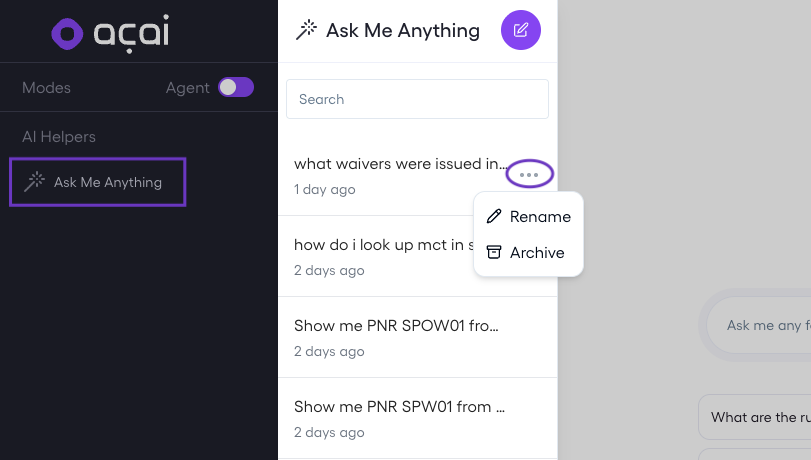
Conversations are stored for one year (365 days)
06. Fare rules and penalties
Check the fare rules
Fare rules define what is allowed on a ticket. Ask about the fare to find out whether changes, cancellations, or refunds are permitted and what penalties apply before you commit to anything.
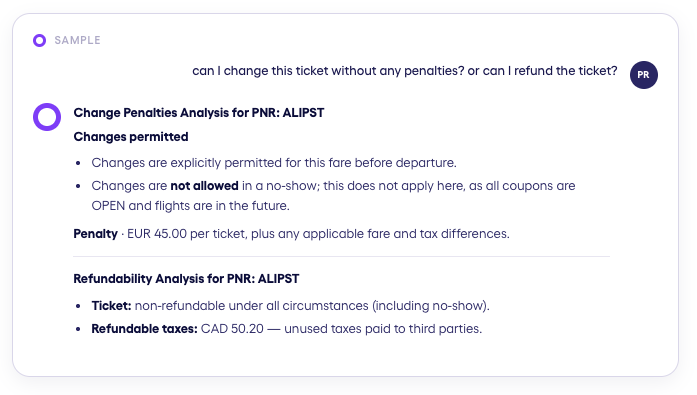
Copilot comes back with a change-penalty analysis (whether changes are permitted, the conditions that apply, and the penalty per ticket plus any fare and tax difference) and a refund-ability analysis (refundable or not, and which taxes are recoverable).
Applicable Qualifiers are used in order to pull out the correct fare based on the ticket of PQ/TST details.
07. Quoting a change
Compare the options first
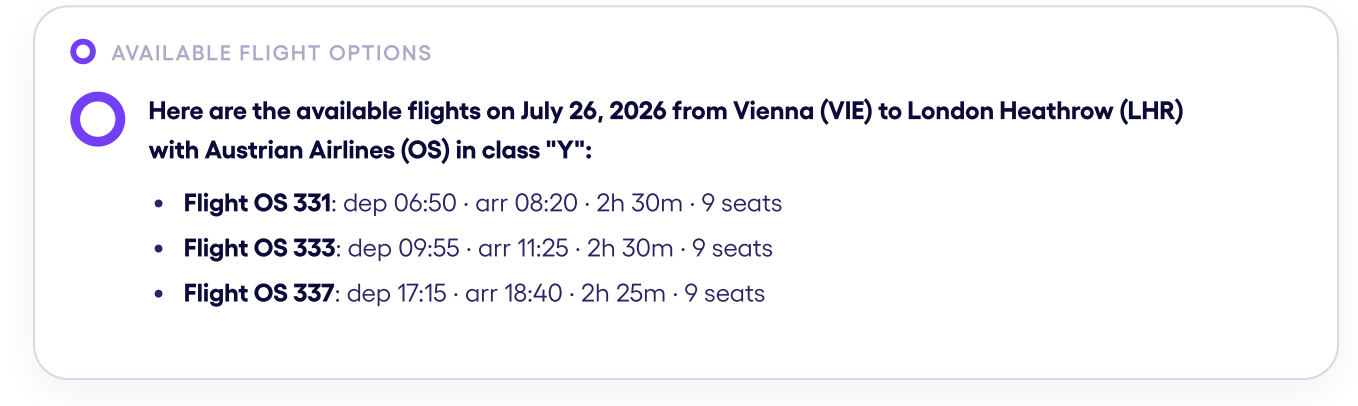
When a passenger wants a different date, a new route or a cabin upgrade, Copilot quotes the change and shows available flights alongside the cost.
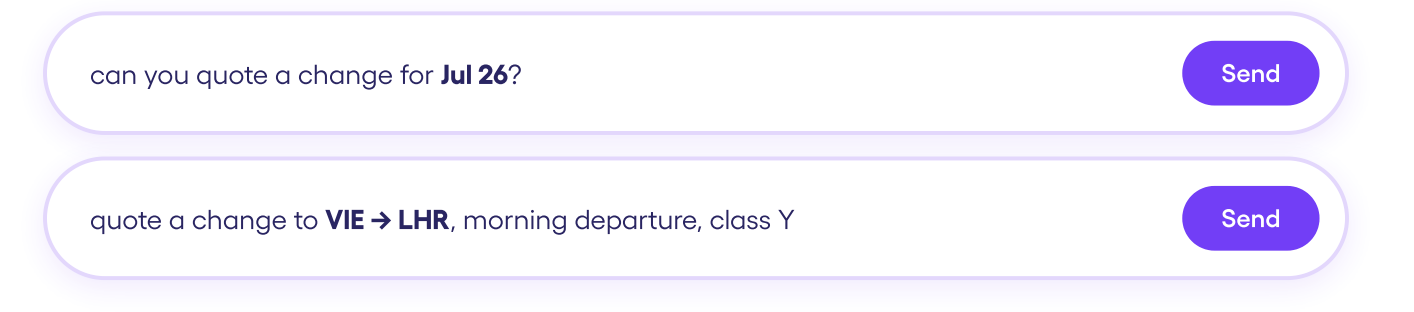
Copilot returns the available flight options, including flight number, departure and arrival times, duration, and available seats.
Quoting is always available; executing is notExchange execution must be activated for your team and is not enabled by default. Contact your Acai account manager to switch it on.
Choosing an option
Price any option, side by side
Ask Copilot to quote any option from the list. It returns the full cost breakdown so you and the passenger can compare before deciding.
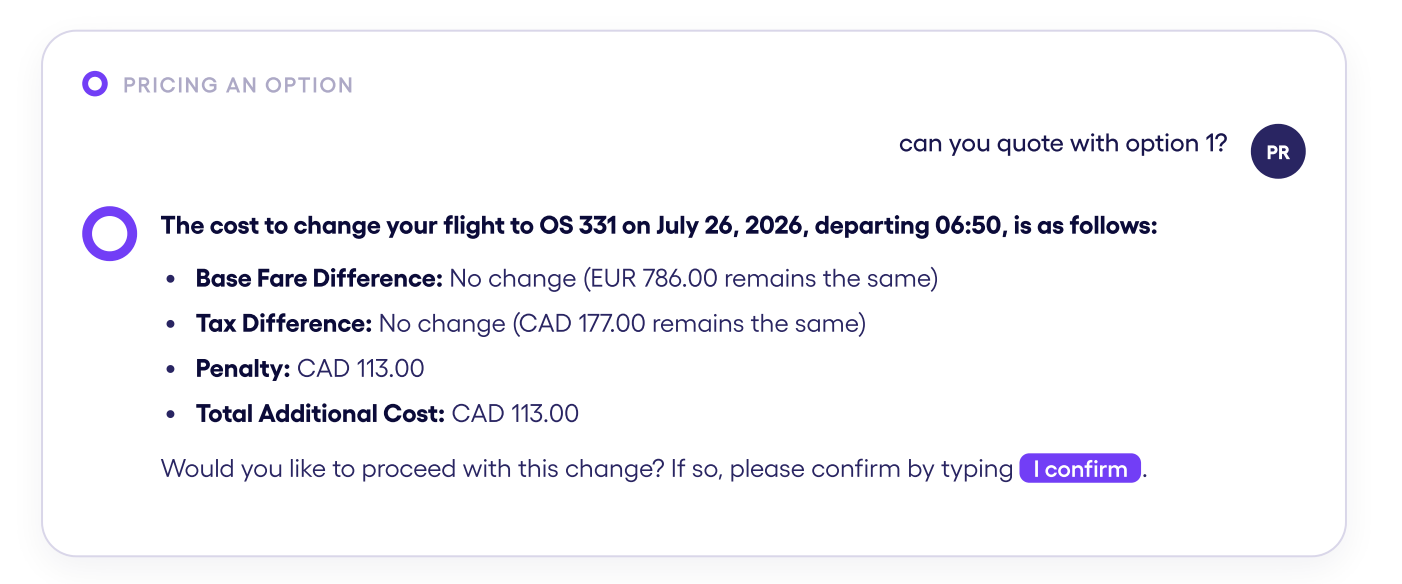
The breakdown covers the base fare difference, tax difference, penalty, and total additional cost. It ends by asking you to confirm before anything happens.
Quoting is read-onlyNo changes are made to the booking at this stage. Review the options, compare the costs, and decide which one to proceed with.
08. Executing a change
Confirm to process the exchange
Once you have reviewed the quote and selected the right flight, ask Copilot to execute the exchange. Reference the option number. You will always be asked to confirm.
Copilot asks you to confirm by typing I confirm. That step is required to authorize the change. Once confirmed, it processes the exchange and returns a summary of costs.
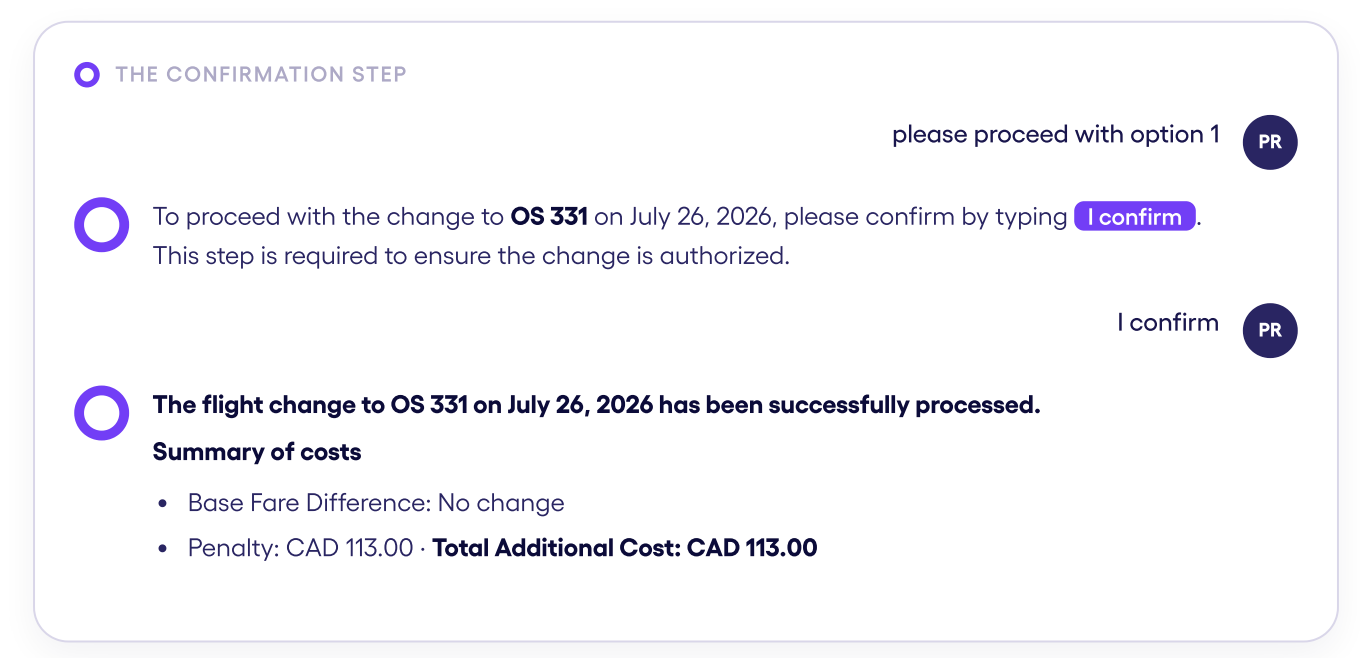
Exchange execution must be activatedIt is not enabled by default. Contact your Acai account manager to switch it on. Until then, agents can quote changes but not process them.
What Copilot does for you when executing a change
Behind the scenes it runs the full exchange workflow in the GDS, so your agents don't have to:
Rebooks the new flight segment in the GDS.
Calculates and applies the fare difference and penalties, using automated GDS tools.
Reissues the ticket with updated details.
Updates the PNR, then confirms the exchange with the new ticket number and itinerary.
Automated GDS tools used: ATC Changes for Amadeus and WFRF for Sabre.
09. Cancellations quoting
Quote before you cancel
Before cancelling, Copilot quotes the cancellation so the agent and the passenger understand the financial impact: refund eligibility, penalty amounts and the net refund per passenger.

Copilot returns refund eligibility per ticket (refundable or non-refundable), the penalty and cancellation-fee breakdown, and the net refund per passenger and in total.
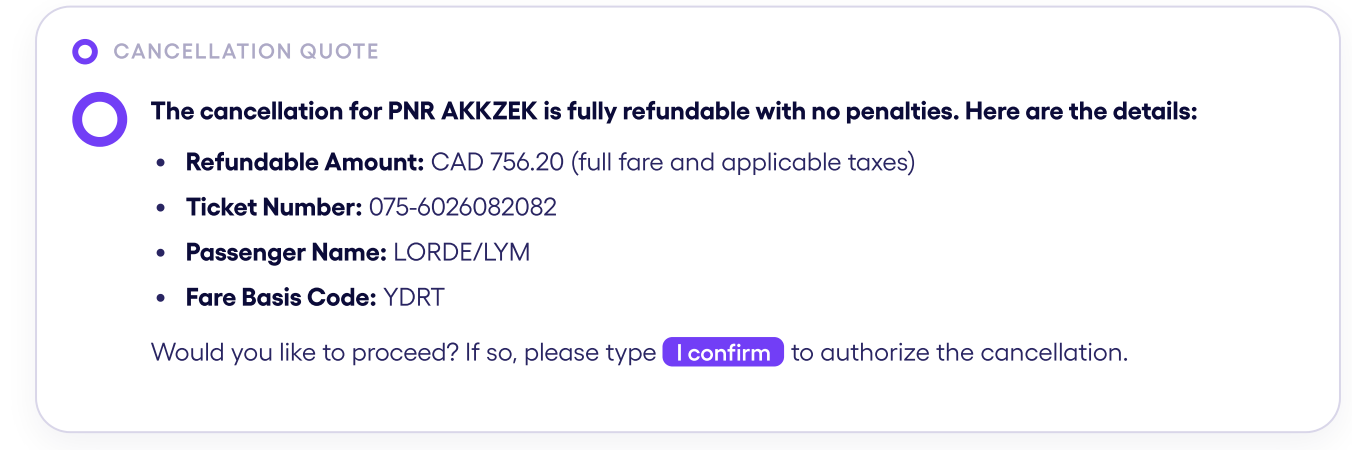
Quoting is always available; executing the cancellation is notCancellation execution must be activated for your team and is not enabled by default. Contact your Acai account manager to switch it on.
10. Cancellation executing
Confirm to process the cancellation
After reviewing the quote, instruct Copilot to process the cancellation. As with changes, you will always be asked to confirm by typing I confirm.
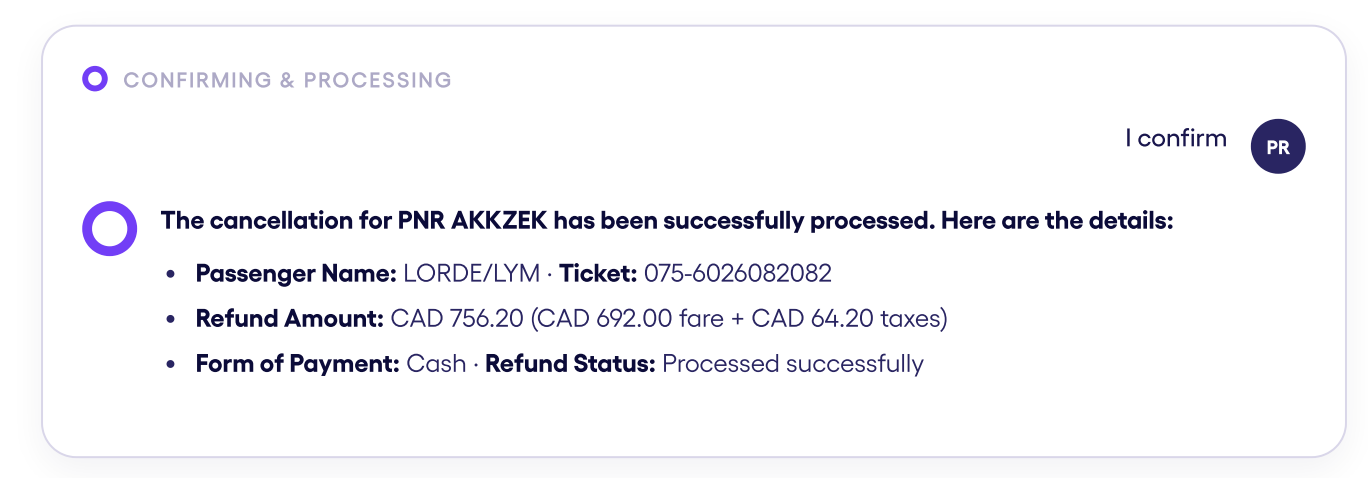
What Copilot does when executing cancellation:
- Cancels the relevant segments in the GDS.
- Processes the void or refund based on ticket rules.
- Updates the PNR and confirms the outcome with refund details and ticket status.
The sidebar shows the ticket's updated status.
Tools used: ATC Cancel for Amadeus and WFRA for Sabre. The sidebar shows the ticket's updated status
Cancellation execution must be activatedIt is not enabled by default. Contact your Acai account manager to switch it on. Until then, agents can quote cancellations but not process them.
11. Void Process
When a cancellation is requested and the ticket is still within its void period,
Co-pilot voids it instead of refunding, recovering full value with no penalty.
Supported for ARC and BSP. As with every action, Co-pilot always asks you
to confirm before executing.
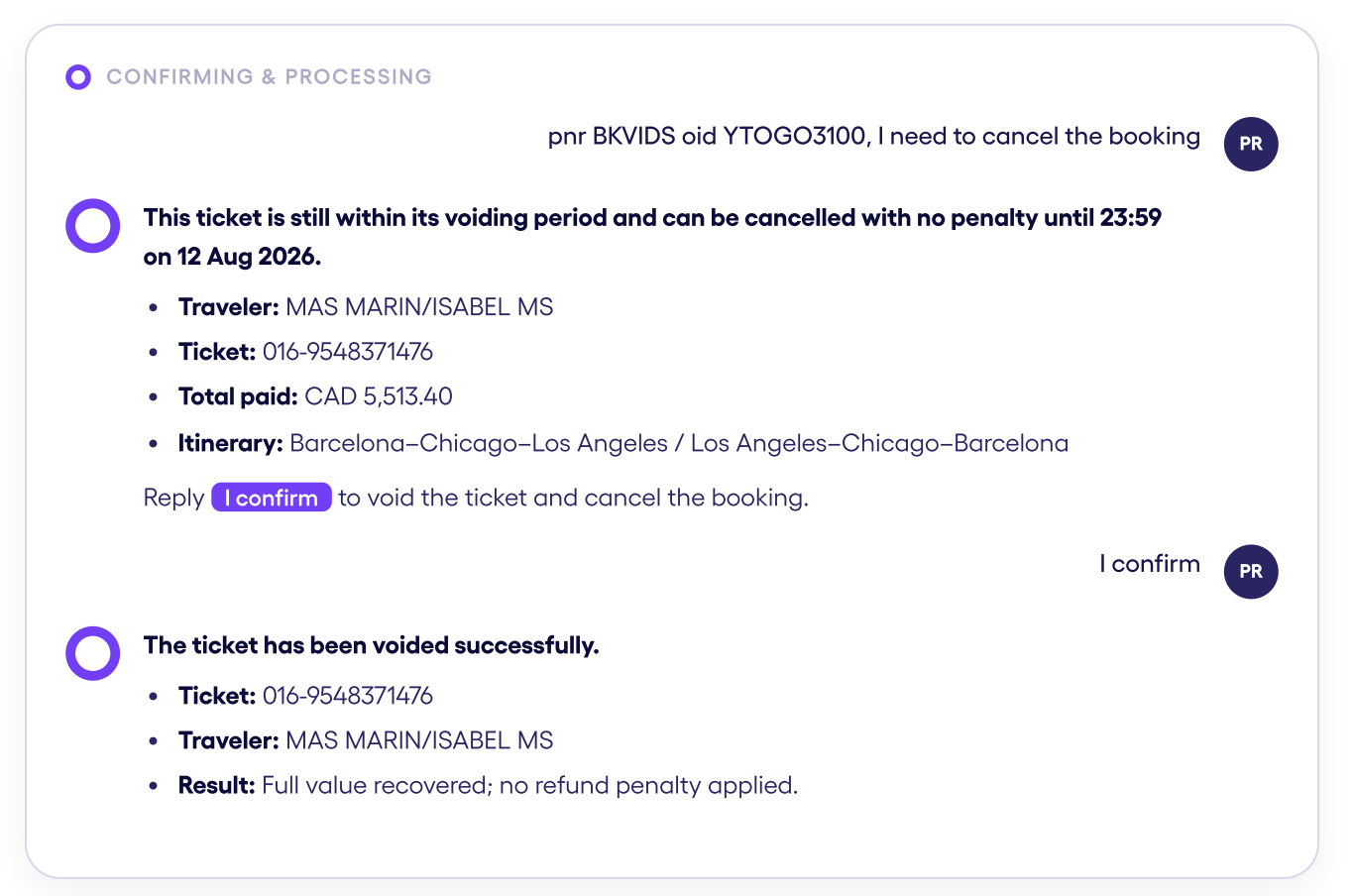
What Copilot does for you when voiding a ticket
Behind the scenes it runs the void.
Voids the tickets in the PNR.
Cancels the segments in the PNR.
Updates the PNR and confirms the outcome.
What's Covered
| Scenario | Details |
|---|---|
| Originally issued tickets | Voided against their original issuance. |
| Exchanged tickets | Reissued as part of an exchange, voided against the reissue. |
| Multi-passenger PNRs | All eligible tickets in the PNR are voided. |
Out of scope: EMDs and ancillaries. The automation does not void EMDs or ancillary services. Where
a PNR contains associated EMDs, these must be handled manually by an agent.
Amadeus only, for now: Void is currently available for Amadeus bookings. Support for other GDSs is on the roadmap.
Void execution must be activated. Contact your Acai account manager to switch it on.
12. Split/Divide Passengers
When a single passenger needs their own change or refund, Co-pilot can
split that passenger into a new PNR. As with every action, Co-pilot requests
confirmation before proceeding.
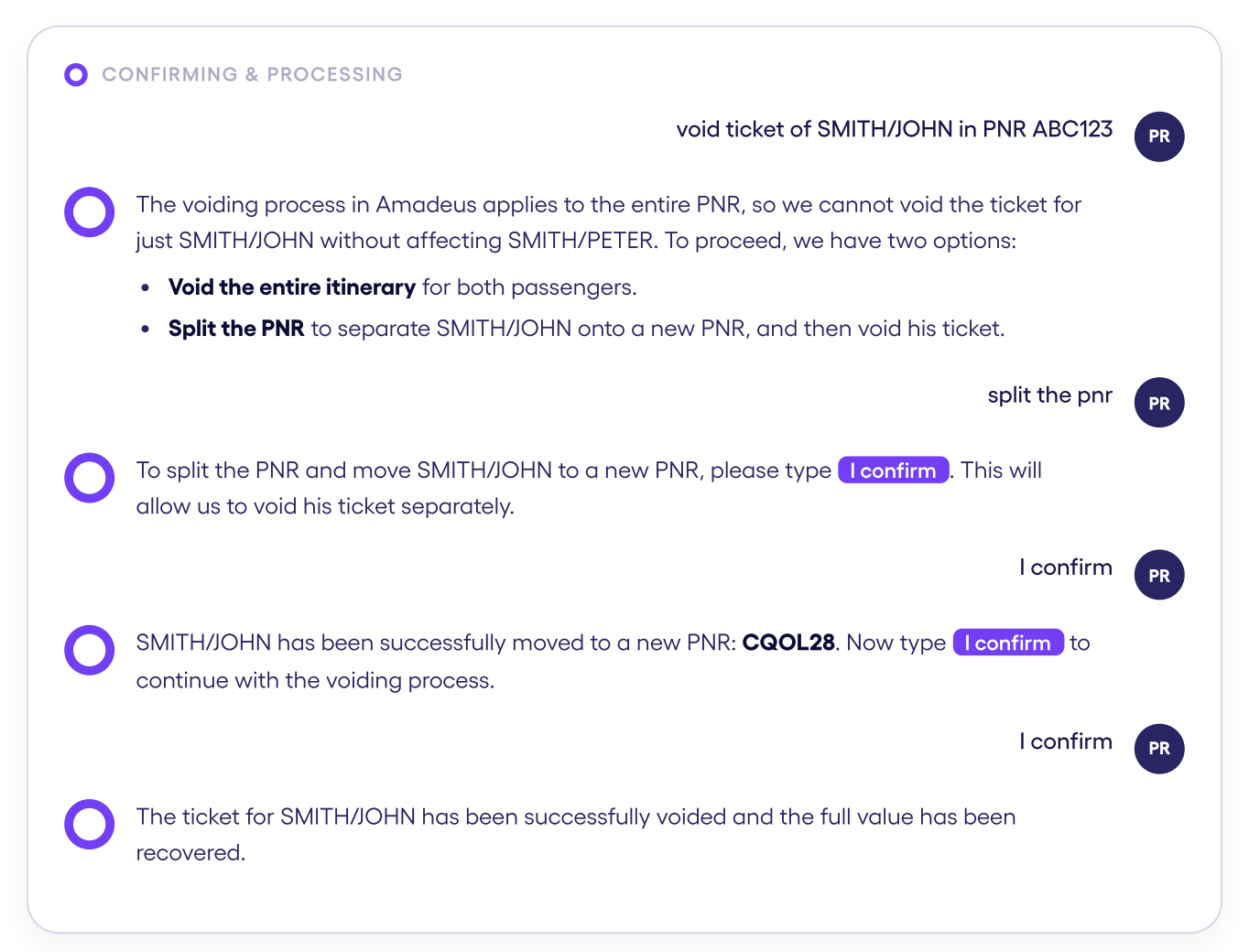
What Copilot does for you when splitting/diving a booking
Behind the scenes it runs the void.
Identifies the passengers on the PNR and
matches them with the request.
Quotes the refund or change.What's Covered
Splits the PNR.
Executes the process requested.
Amadeus only, for now. Split is currently
available for Amadeus bookings. Support
for other GDSs is on the roadmap
Split execution must be activated. Contact your Acai account manager to switch it on.
13. PNR History
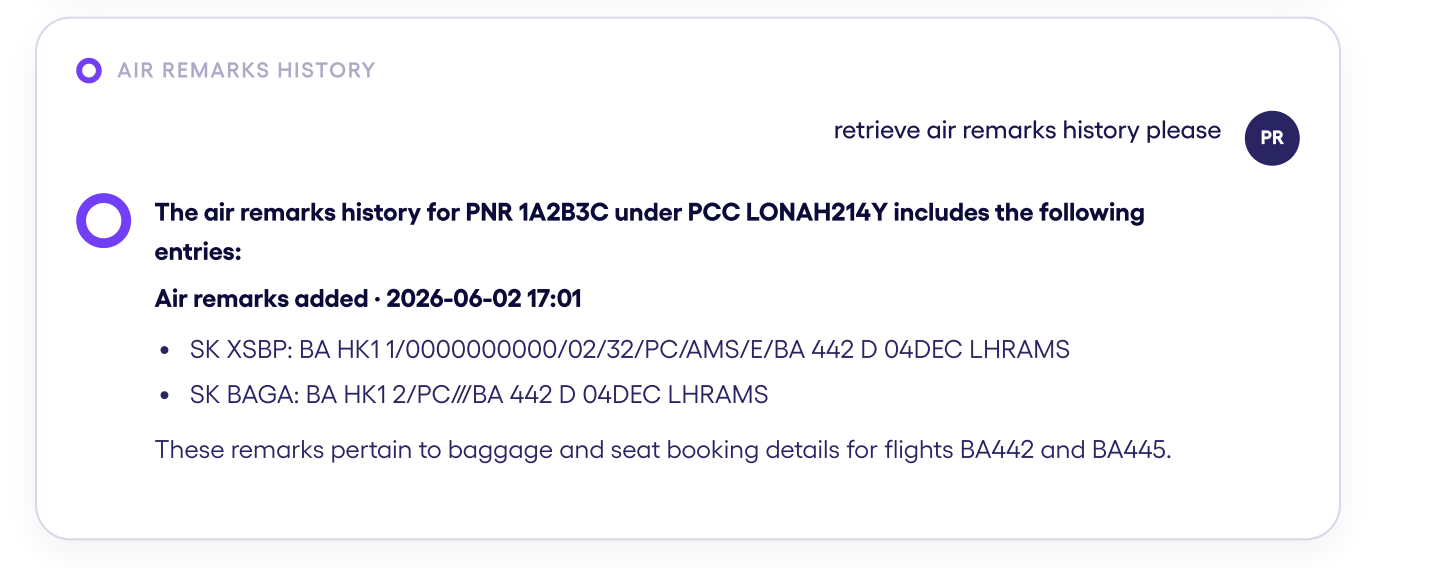
Co-pilot can extract the full history of a PNR, and even identify the sign-in of
whoever modified it. Useful for audits, disputes and understanding what
happened to a booking before it reached you.
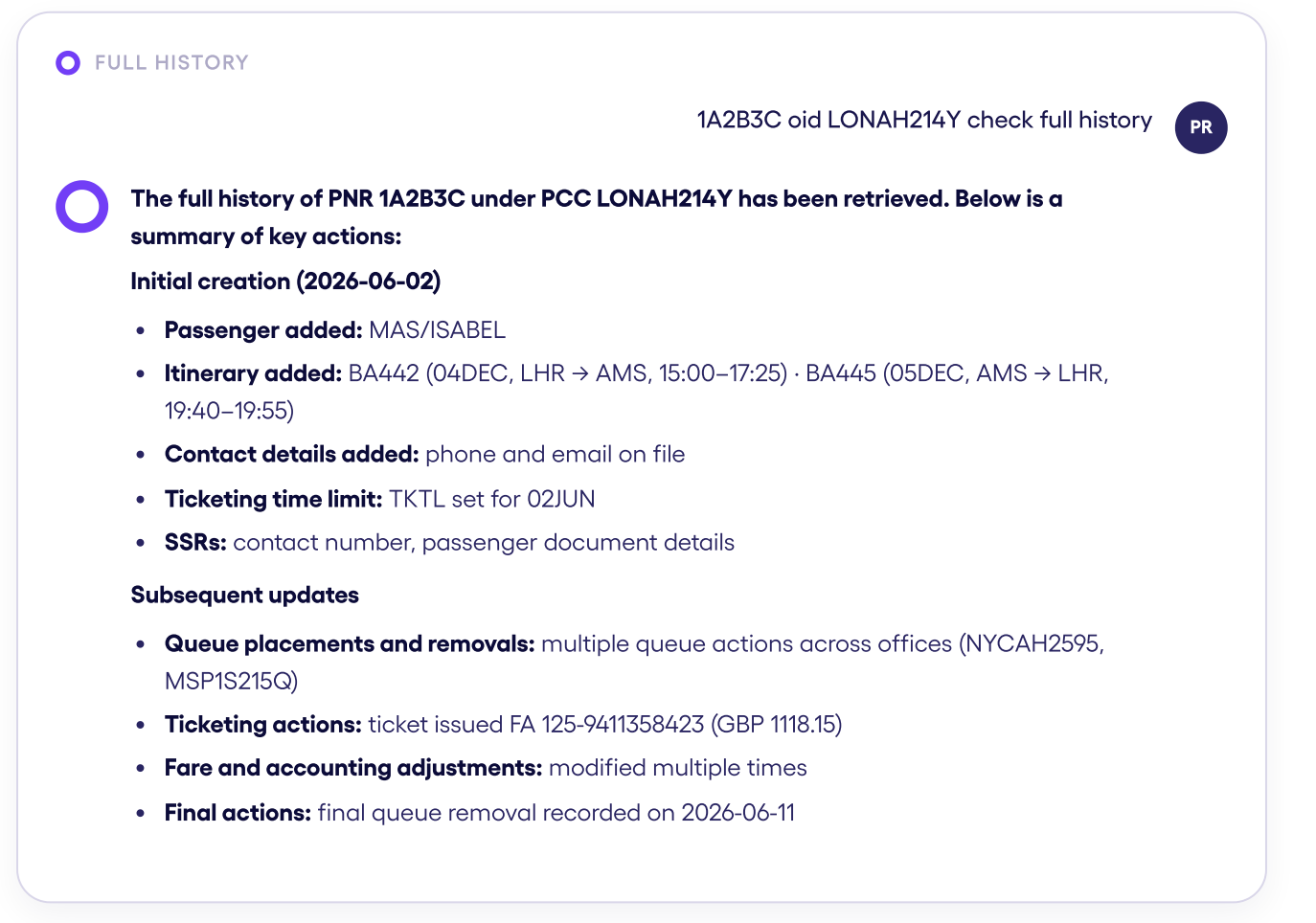
Always say "history" in your prompt.
Co-pilot only pulls the historical data when the request explicitly references the history, otherwise it returns the current state of the booking instead.
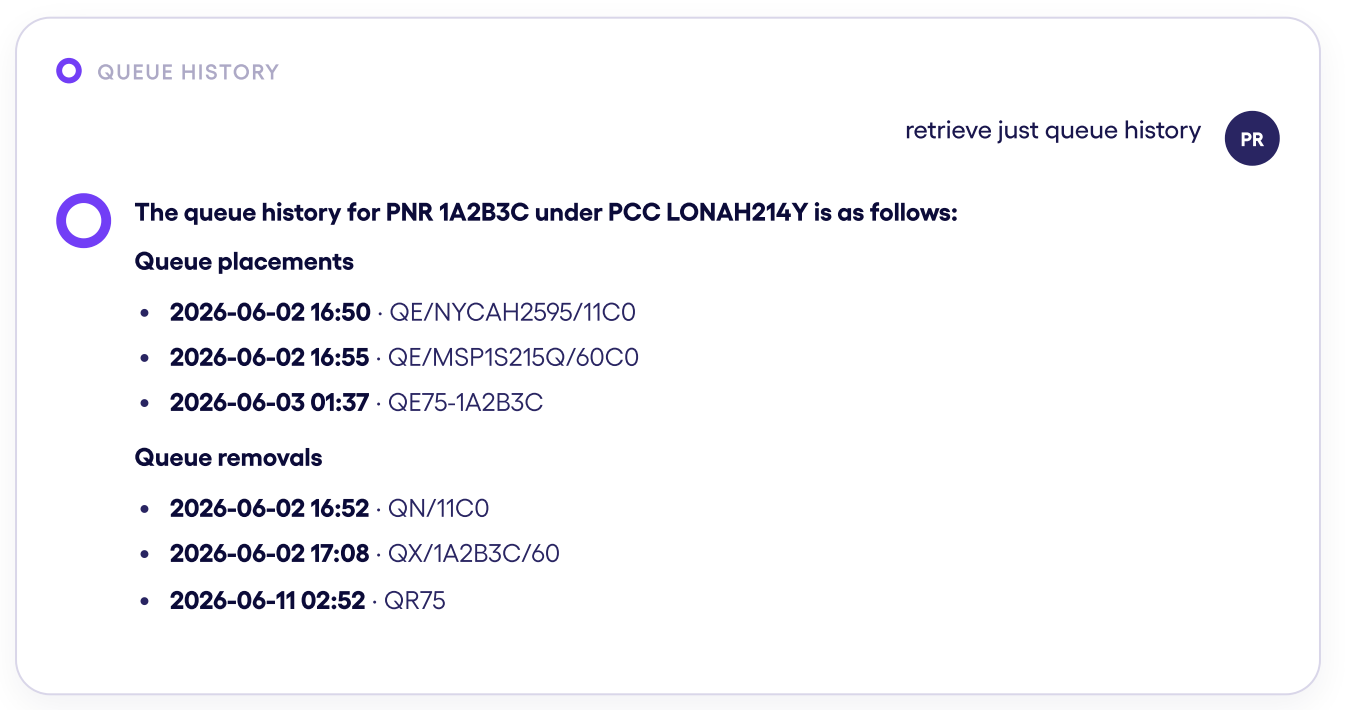
Narrow it to what you need
The full history can run long. Ask for a specific category and Co-pilot returns
just that slice of the audit trail.
14. Waiver Search
Ask Co-pilot whether a disrupted flight is covered by an airline waiver, and
get the code, the field it goes in, and every deadline attached to it.
It answers
a question about a flight, not a booking: a PNR is just a fast way to hand
over the details.
What comes back
- The waiver code and the GDS field it belongs in.
- The eligible original travel date and affected airport.
- The ticket issue cutoff: the date by which the ticket must already have been sold.
- The reissue deadline and the new travel completion deadline.
- What rebooking is permitted, plus a link to the airline's advisory.
Finds the waiver. Does not apply it. Waiver
search is a read-only lookup: it does not
rebook, reissue, price, or write the code into
the PNR.
It is the agent's responsibility to confirm the waiver applies to their ticket and to
check the fare outcome before reissuing.
Airlines covered
- United
- Delta
- American
- Southwest
- JetBlue
- Alaska
- Air Canada
- Air France
- British Airways
- Iberia
- KLM
- Lufthansa
- Aeromexico
- LATAM
- Qantas
- Virgin Atlantic
- Virgin Australia
If the ticketing carrier is not on this list, there is nothing to return and you get a "no waiver" response. Need another airline? Let your Acai account manager know.
15. Tips & Best practices
Get the best results, every time
Four habits that help agents work faster and more accurately.
✅ Always label which is the PNR and which is the PCC/OID. Copilot needs both to find the booking in the right GDS environment. Give them together in your first message rather than one value per turn.
✅ Start a new chat per topic. When the topic changes, start a new chat. It keeps conversations separate and easy to find later.
✅ Use simple language. Skip GDS commands. Copilot understands intent, so talk to it as you would to a colleague.
✅ Provide feedback. Use 👍 when a response works and 👎 when it misses, and add a comment. It is how the assistant improves.
16. Far beyond changes and cancellations
Agents can ask open-ended questions about any aspect of a booking. Copilot retrieves the answer from the GDS, and can also pull details from airline websites and GDS manuals.
| You want | Ask something like |
|---|---|
| Baggage allowance: What's included for a passenger on a specific segment. | "What is the checked baggage allowance for SMITH/JOHN on the BA segment?" |
| Fare rules: Change fees, refund rules, minimum stay, and advance purchase. | "Are there change fees? PNR ABC123, PCC A1B2" |
| Seat assignments: Which seats are assigned. | "What seats are assigned on this PNR?" |
| Draft an email: Based on a quote or any data you want to share. | "Draft an email to the passenger with the option 1 quote." |
| Visa and travel documents: Transit visa or documentation needs for a route. | "Does this routing need a transit visa for a Brazilian passport?" |
| Ticket status: Open, confirmed, refunded, voided, or exchanged. | "What's the status of this ticket? PNR ABC123, PCC A1B2" |
| Airline contact info: For post-departure issues or special handling. | "Can you get me the IB customer support phone number?" |
| GDS processes and commands: General procedures, or how to run one. | "I need to change my passcode in Amadeus, what should I do?" |
Q&A on your internal policiesIf your agency has shared its internal policy documents with Acai, agents can also ask questions about refund rules, waivers, approval thresholds, and fees. Ask Me Anything answers from the document itself and points you to the source, so you can verify it.
17. Preferred & excluded suppliers
Bring the customer's own playbook in
Share your policy and supplier files with Acai. Copilot ingests them into the account profile so it can surface your preferred and excluded suppliers on demand and factor them into every quote and booking suggestion. No re-keying or side spreadsheet is required.
- You share the policy and supplier files with Acai.
- Acai ingests them into the account profile.
- Copilot surfaces and applies the preferences.
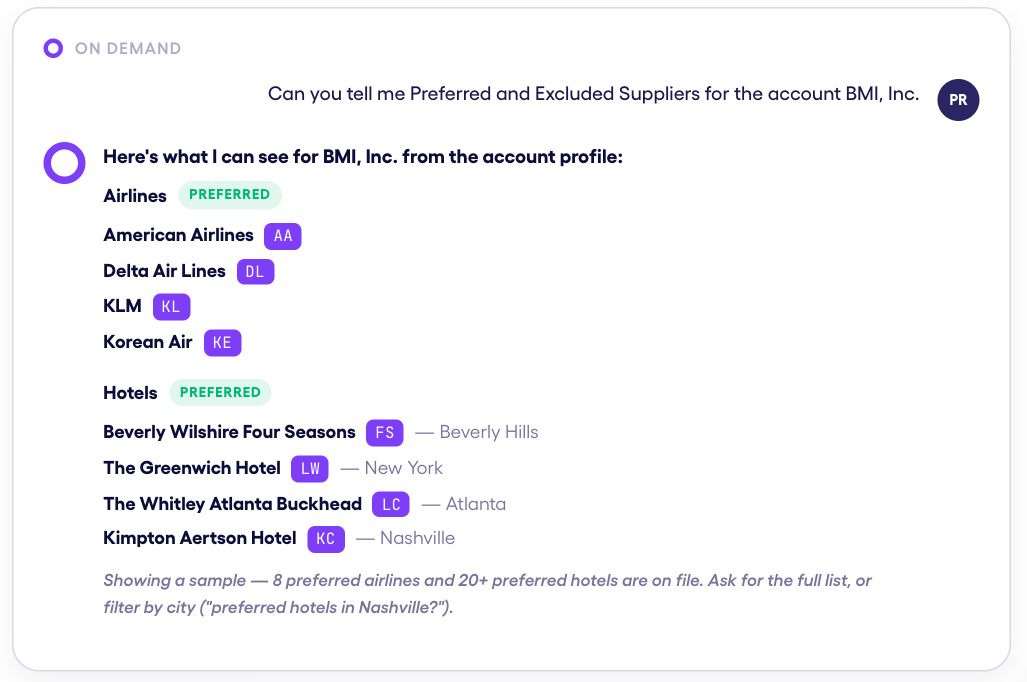
Copilot lists the preferred airlines and hotels held on file for that account. It can filter them, for example, "preferred hotels in Nashville?", or return the full list.
Applied to every quote and suggestion.
Preferences are not just a lookup. Copilot flags preferred suppliers inside flight and hotel options, warns when an excluded one appears, and combines that with the fare rules, so agents book policy-compliant, best-value options without cross-checking a document.
✅ Combined with fare rules. A supplier only appears as a valid pick when it also clears the fare's rules, including rate caps, cabin class, and advance-purchase requirements. "Preferred" never overrides "not bookable".
❌ Excluded, not blocked. Excluded suppliers are surfaced with a clear warning rather than hidden. The agent stays in control and can document the exception when a traveler requires it.
One source of truthUpdate the policy file and re-share it; Copilot picks up the new lists, so agents are never working from a stale spreadsheet.
Ask for the right policy document
Policies live in three separate buckets: account, airline, and GDS. Copilot can only pull the right rules when your prompt names the relevant bucket, so label the scope just as you would a PNR and a PCC.
| Bucket | What it covers |
|---|---|
| Account policy | Preferred and excluded suppliers, class-of-service rules and negotiated rates for one customer account. |
| Airline policy | Fare-family rules, waivers and route conditions specific to one carrier, independent of the account. |
| GDS policy | Ticketing and handling rules tied to a GDS office, such as Sabre, Amadeus, or Travelport. |
| ❌ Frequent issue | ✅ Good practice |
|---|---|
| ❌ "What's the policy?" No bucket is named. | ✅ "Show the account policy for Acme Corp" The bucket and identifier are both named. |
| ❌ "Any waivers for Delta?" This is ambiguous: account rules about Delta, or Delta's own fare policy? | ✅ "Show the airline policy for Delta (DL): schedule-change waivers" The bucket, carrier code, and topic are named. |
| ❌ "How do we ticket this one?" Handling rules vary by office. | ✅ "Show the GDS policy for Sabre, PCC A1B2" The bucket and specific office are named. |
Name the bucket first:
account policy…,airline policy…, orGDS policy…. Then provide the identifier. Copilot combines all three with the fare rules when it builds a suggestion.
17. Quick reference
Everyday prompts
| Task | Example prompt |
|---|---|
| Retrieve a PNR | "Check PNR ABC123 in PCC A1B2" |
| A ticket number is not a PNR | ✗ "Check 075-1234567890" → ✓ "Check PNR ABC123 in PCC A1B2" |
| Quote a change | "Quote a date change for 2 days later" |
| Execute a change | "Execute option 2" |
| Quote a cancellation | "Quote a cancellation for PNR ABC123 from PCC A1B2" |
| Execute a cancellation | "Go ahead and cancel PNR ABC123 in PCC A1B2" |
| Baggage info | "What is the checked baggage allowance for SMITH/JOHN on the BA segment?" |
| Fare rules | "Are there change fees? PNR ABC123, PCC A1B2" |
| Preferred suppliers | "Preferred and excluded suppliers for account Acme Corp?" |
| Seat info | "What seats are assigned on this PNR?" |
| Ticket status | "What's the ticket status? PNR ABC123, PCC A1B2" |
| Ticketing deadline | "When is the ticketing deadline for this PNR?" |
Updated about 1 month ago